Managing a Windows Server VPS requires careful monitoring of user accounts to ensure security and smooth access. One of the most common challenges system administrators face is the Account Lockout problem. This usually happens due to repeated failed login attempts, cached credentials, or even brute force attacks targeting the RDP (Remote Desktop Protocol).
In this blog, we’ll explore the main causes of account lockouts, how to track them using Event Viewer, and how to configure the Account Lockout Policy properly to balance security and usability.
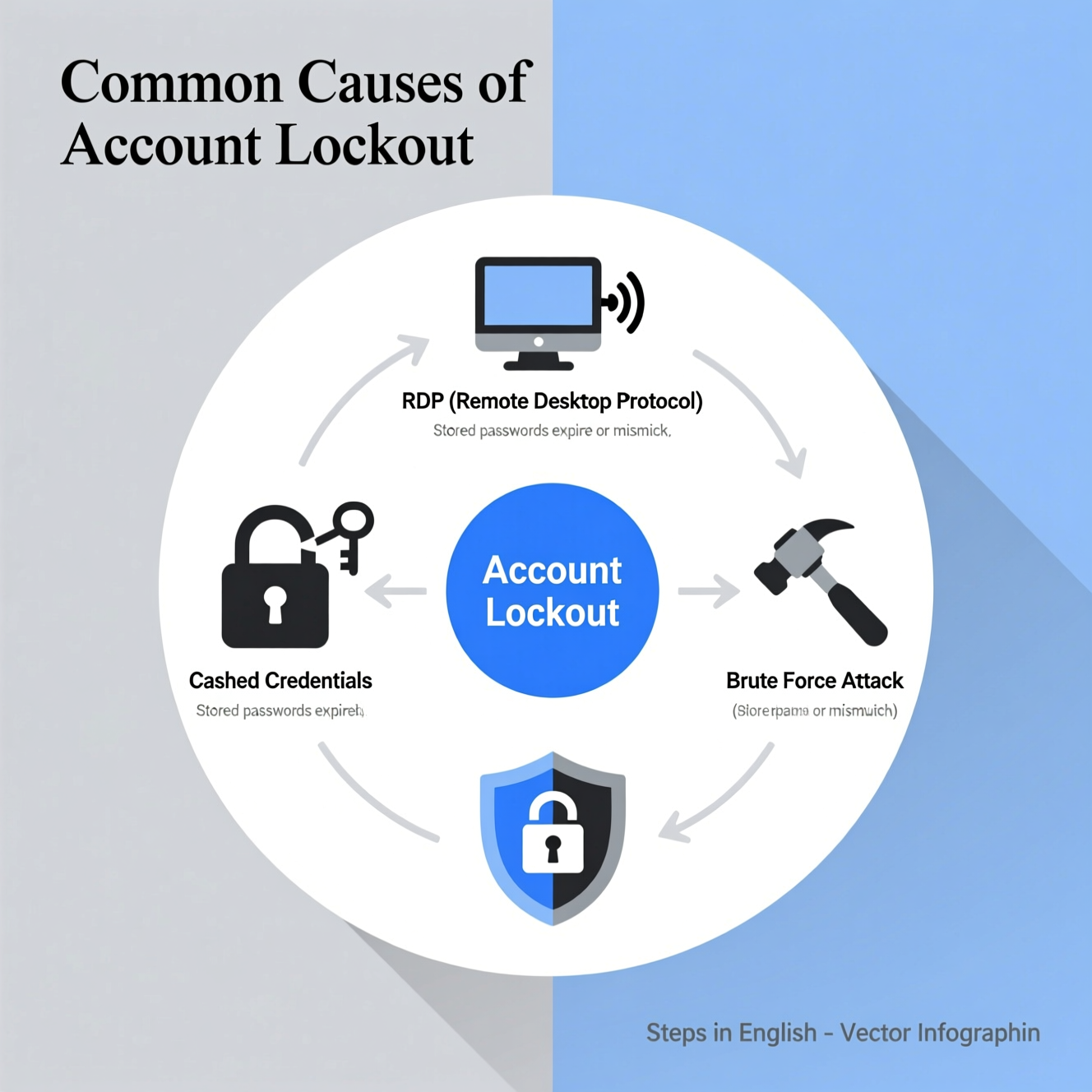
Most account lockouts are not accidental. They are triggered by specific reasons such as:
Cached Credentials: If a user changes their password but another device or application is still using the old one, repeated login failures will cause a lockout.
RDP Failed Logins: Multiple incorrect Remote Desktop logins can quickly trigger account lockouts.
Brute Force Attacks: Automated password-guessing attacks that try different credentials until the account is locked.
Services & Scheduled Tasks: Old saved credentials in services or scheduled tasks may cause repeated failures.
User Error: Simple mistakes, like entering the wrong password multiple times.
✅ Understanding these causes helps you solve the root issue instead of just unlocking the account repeatedly.
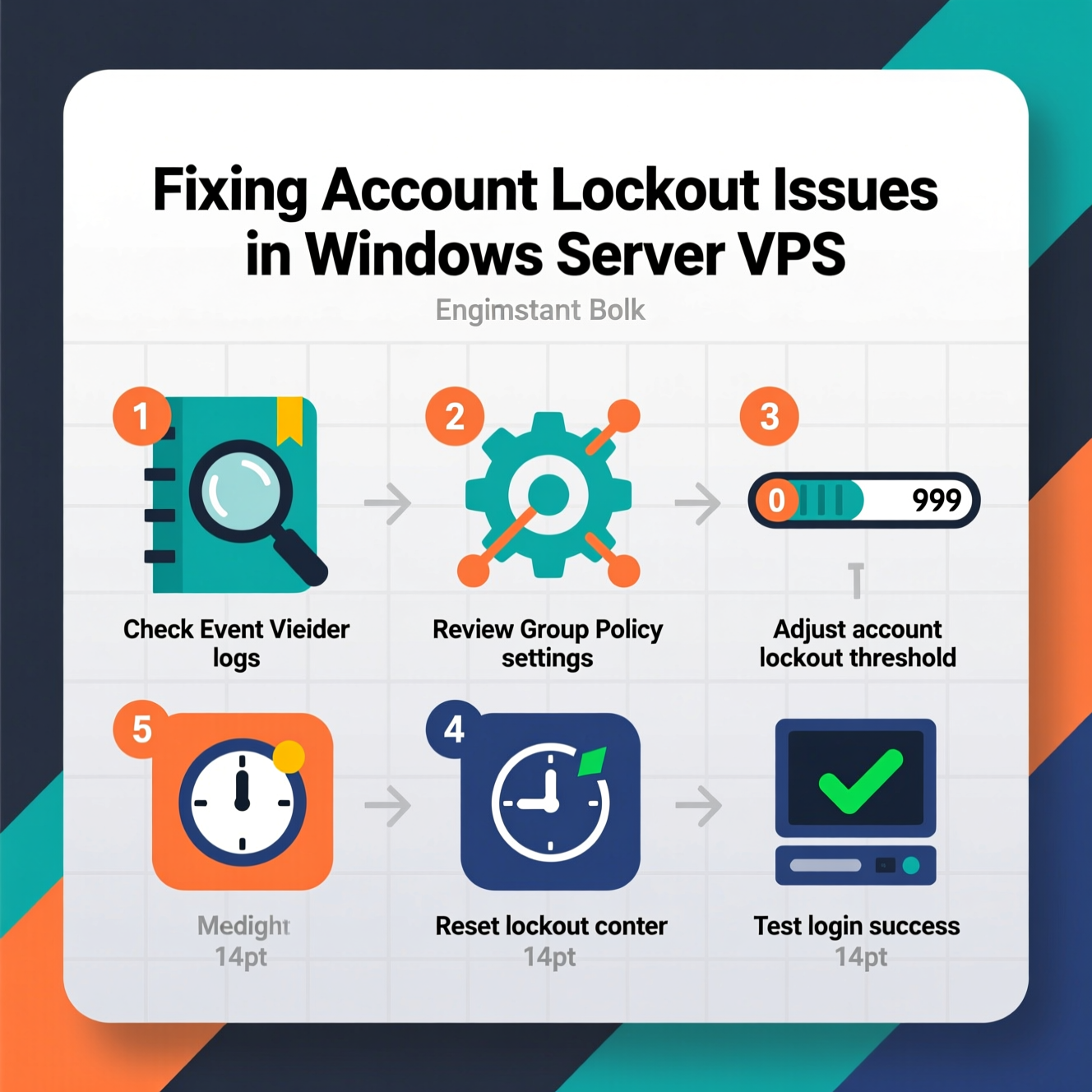
The Event Viewer is your best tool to investigate account lockouts. It shows exactly what triggered the problem and from where.
Steps to track account lockouts:
Press Win + R → type: eventvwr.msc.
Navigate to: Windows Logs > Security.
Look for Event ID 4740 (indicates that an account was locked out).
In the event details, you will find:
Target Account Name: The locked account.
Caller Computer Name: The device that triggered the failed attempts.
IP Address (for RDP): The source of login failures.
This helps you quickly identify whether the issue comes from a user device, a misconfigured service, or an external attack.
Once you’ve identified the cause, you’ll need to unlock the account so the user can continue working.
Method 1: Local Users and Groups (lusrmgr.msc)
Open Run → type: lusrmgr.msc.
Go to Users → Right-click the locked account → Properties.
Uncheck Account is Locked Out.
Method 2: Command Prompt
Open CMD as Administrator.
Run:
Method 3: Active Directory (if on domain)
Open Active Directory Users and Computers.
Locate the account → Right-click → Properties.
From the Account tab, remove the lockout.
Setting up the Account Lockout Policy properly is the most effective way to prevent recurring lockouts while keeping your server secure.
Steps to configure:
Open Run → type: secpol.msc.
Go to Security Settings > Account Policies > Account Lockout Policy.
Adjust these values:
Account lockout threshold: Number of failed attempts before lockout (recommendation: 5–10).
Account lockout duration: How long the account stays locked (e.g., 15 minutes).
Reset account lockout counter after: Time before failed attempts reset (e.g., 10 minutes).
⚠️ Tips for balance:
Too low (e.g., 3 attempts) = frustrated users.
Too high = weak security.
Recommended: 5–10 attempts, lockout duration of 15–30 minutes.
Update passwords across all devices and services after changes.
Regularly review services and scheduled tasks using saved credentials.
Protect RDP access by changing the default port (3389) and using a firewall.
Enable Multi-Factor Authentication (MFA) whenever possible.
Train users on safe password practices and avoid insecure storage.
Use monitoring tools like Event Viewer or Microsoft’s LockoutStatus Tool to keep track of lockouts.
Fixing the Account Lockout issue in Windows Server VPS is more than just unlocking accounts. It requires identifying the root cause with Event Viewer, applying the right Account Lockout Policy settings, and following best practices to prevent future problems. This way, you ensure stronger security while maintaining a smooth experience for your users.
هل تحتاج إلى Windows VPS سريع وآمن وبسعر مناسب؟
شركة EgyVPS بتوفرلك سيرفرات ويندوز جاهزة للاستخدام فورًا.
? تواصل معنا عبر: 201001197157
? أو زور موقعنا: https://egyvps.com
 2019 - 2023 © WELNIZ.LTD. All rights reserved.

 United Arab Emirates (Arabic)
 Worldwide (English)